
Steam Deck support
Installing our mod on a Steam Deck requires some extra steps beyond the standard manual installation process. And there are also a few recommendations that we would like to share.
Our recommendations are based on our own experiences, which we also wrote about in this blog post.
In short, the steps look like this:
- Switch to desktop mode on your Steam Deck.
- Prepare the mod archives and the OwlcatModificationManagerSettings.json file by downloading or copying them from your desktop.
Do not create the settings file from scratch on your Steam Deck! - Use Dolphin (the file explorer) or Konsole (the console) to extract and copy all the files to the correct target folder.
- Start the game and
check the mod status: either
- Press Ctrl + M on a keyboard, if you have one, or
- Check the game logs to ensure the mods were identified and loaded.
- All done!
Troubleshooting 101
If the game still does not see your mods after you’ve tried everything (and you’ve definitely extracted the files to the Modifications subdirectory, right?), the problem is definitely a missing quote, a misplaced space, or a stray character in the OwlcatModificationManagerSettings.json file or its name.
Just download* this valid settings file and copy it to your Steam Deck.
* Right-click on the link in your browser and select “Save link as…"
Switch to desktop mode
- First, press the Steam button and select Power -> Switch to Desktop:

- After a couple of seconds, your Steam Deck should switch to desktop mode:

Prepare the files
Now you'll have to prepare the mod archives and the OwlcatModificationManagerSettings.json file before placing them in the target folder.
Download the mod archives that you want to install or copy them from your desktop to the Steam Deck using a flash card, USB stick with a Type-C adapter, Warpinator, etc.
For simplicity's sake, let's presume that you've placed the mod archives and the settings file in the Downloads folder:

How to prepare the mod settings file
DO NOT TRY TO CREATE THE MOD SETTINGS FILE FROM SCRATCH ON YOUR STEAM DECK.
Most of the failed attempts of installing our mod on a Steam Deck were caused by a missing quote, a misplaced space, or a stray character in the OwlcatModificationManagerSettings.json file or its name.
Transfer a valid settings file from your desktop. Or, if you'd prefer, download and save* this settings file that was tested in our post.
* Right-click on the link in your browser and select "Save link as..."
You can also download the basic zipped file from the Files -> Miscellaneous section on Nexus Mods. Extract the file and copy it to your Steam Deck.
What’s next?
Next, we'll have to find our target folder and place our files there:
/home/deck/.steam/steam/steamapps/compatdata/1184370/pfx/drive_c/users/steamuser/AppData/LocalLow/Owlcat Games/Pathfinder Wrath Of The RighteousYou can choose how to do it:
- Via a file explorer (Dolphin) — simpler, longer, visual method
- Via console (Konsole) — advanced, short, unforgiving method
Follow the instructions in the relevant section below.
Place the files (Dolphin)
Follow the instructions in this section if you prefer to manage files visually with Dolphin—the default SteamOS file explorer.
Find Dolphin
First, locate the Dolphin icon. By default, it's attached to the bottom of the screen:

If it's not there for some reason, you can find it in the System submenu:

Go ~home
Click on the Dolphin icon to open the app and select Places -> Home:

View hidden files
Now, we need to see view the hidden files. Click the hamburger menu (three horizontal lines) in the top right corner of the window, then select "Show Hidden Files."

At this point, you'll see the previously hidden .steam symlink that we'll have to dive in:

Let's go deep down the directory tree until we reach our target folder.
Dive to the target folder
Make sure you have installed the game and loaded the main menu at least once.
Our target folder on SteamOS is located precisely here:
/home/deck/.steam/steam/steamapps/compatdata/1184370/pfx/drive_c/users/steamuser/AppData/LocalLow/Owlcat Games/Pathfinder Wrath Of The RighteousTo simplify things, first locate the Steam subfolder where the game is installed.
The Steam ID for Pathfinder: Wrath of the Righteous is 1184370 . We should then follow the chain of the subdirectories:
HOME -> .steam -> steam -> steamapps -> compatdata -> 1184370
We are closer to our target folder. However, we'll have to go a bit further...
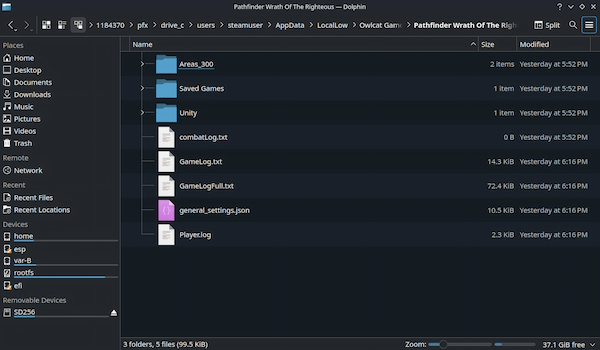
... -> pfx -> drive_c -> users -> steamuser -> AppData -> LocalLow -> Owlcat Games -> Pathfinder Wrath Of The Righteous
... until we reach our final destination:
Place the settings file
We have the folder.
Now, copy the previously prepared OwlcatModificationManagerSettings.json file here:

Create the Modifications subfolder
We also have to create the Modifications subfolder to contain the mods:

Extract the mod files
Finally, extract the prepared mod archives and place the mods in the Modifications folder:

All done. Now is the time to start WotR and check the mod status.
Place the files (Konsole)
Follow the instructions in this section only if you prefer working with the console and enjoy not making any errors.
For simplicity, we will assume the following in this section:
- The mod archives and the OwlcatModificationManagerSettings.json file were prepared in the previous step.
- The prepared files are in the Downloads folder:
Now, let's copy and extract our prepared files to the target folder:
/home/deck/.steam/steam/steamapps/compatdata/1184370/pfx/drive_c/users/steamuser/AppData/LocalLow/Owlcat Games/Pathfinder Wrath Of The RighteousThe filenames vary depending on the mod archives you have, but the principle remains the same:
#go to the target location
cd "/home/deck/.steam/steam/steamapps/compatdata/1184370/pfx/drive_c/users/steamuser/AppData/LocalLow/Owlcat Games/Pathfinder Wrath Of The Righteous"

#copy the prepared settings file
cp ~/Downloads/OwlcatModificationManagerSettings.json .

#extract the archives to the Modifications subfolder
unzip -q ~/Downloads/GraciousFriendships-0-9-9b.zip -d ./Modifications
unzip -q ~/Downloads/GraciousFriendships_Woljif-0-9-9b.zip -d ./Modifications
All done:

Check the mod status
With a keyboard for your Steam Deck, you can press Ctrl + M while in the main menu to see enabled mods. If you don't have a keyboard, you will need to check the logs.
Using a keyboard
Connect it to your Steam Deck before starting the game. Press any key when the game prompts to make a selection:

While in the main menu, press Ctrl + M to open the Owlcat Modifications UI submenu:

Using logs
Start the game and wait until the main menu appears. Quit the game, then open GameLogFull.txt, which is located in the same folder we searched for in previous steps.
